Version 7.8.0
Dear astrologers, hello! Version 7.8.0 is officially online (the update from the previous one is a small one, but the previous version did not get its own update article, and its features were still in beta, so I’m taking advantage of 7.8 to make all that official).
+ On the agenda, as usual, a whole flurry of fixes of every kind (bugs, visual improvements, page harmonization, tweaks to a few features to make things smoother, refinement of the typeface, oiling the engine… the usual touch-ups, really!)
+ I have also finally decided on the name of the planet highlighting feature: it will be called “lamp” rather than “torch,” which is still a particularly ugly word!
+ Fixed as well the white veil bug that occurred on some computers.
+ As well as the aspectarian bug that was not loading properly.
+ Also fixed a major bug in the advanced search module (sorting charts by specific characteristics).
+ And finally, the bug with the grimoire definitions appearing in places where they were not expected…
+ Among the new features, first of all, the possibility of loading a country directly by typing its name into the field (for computers, very convenient!)
+ But also the saving, in the palettes, of the light/dark state of the mode.
+ While we’re on the subject of palettes, the last one loaded is now remembered so that, when you right-click on the wheel, then go to the palette submenu, it is highlighted. The same applies in the configuration panel ⛭, where it now appears directly in the palettes menu so you can immediately see which one you are on (kisses to Béa, who wanted this improvement because it was an excellent idea!)
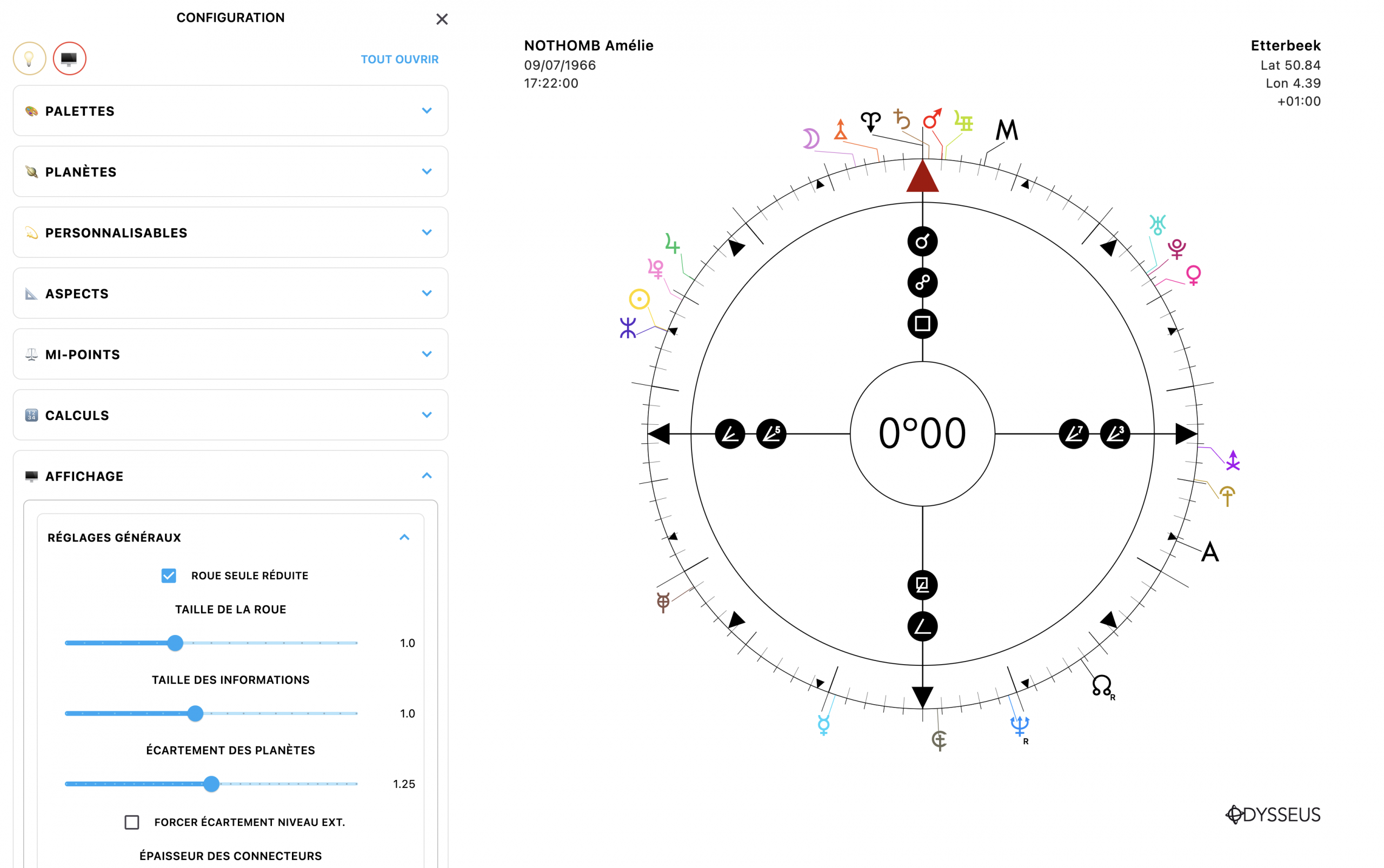
+ Also, for those who, like me, did not really like it when the wheel appeared too large when only one level was displayed, an option in the configuration panel ⛭ lets you reduce its size (“DISPLAY” block, “GENERAL SETTINGS” sub-block, “REDUCED SINGLE WHEEL” box).
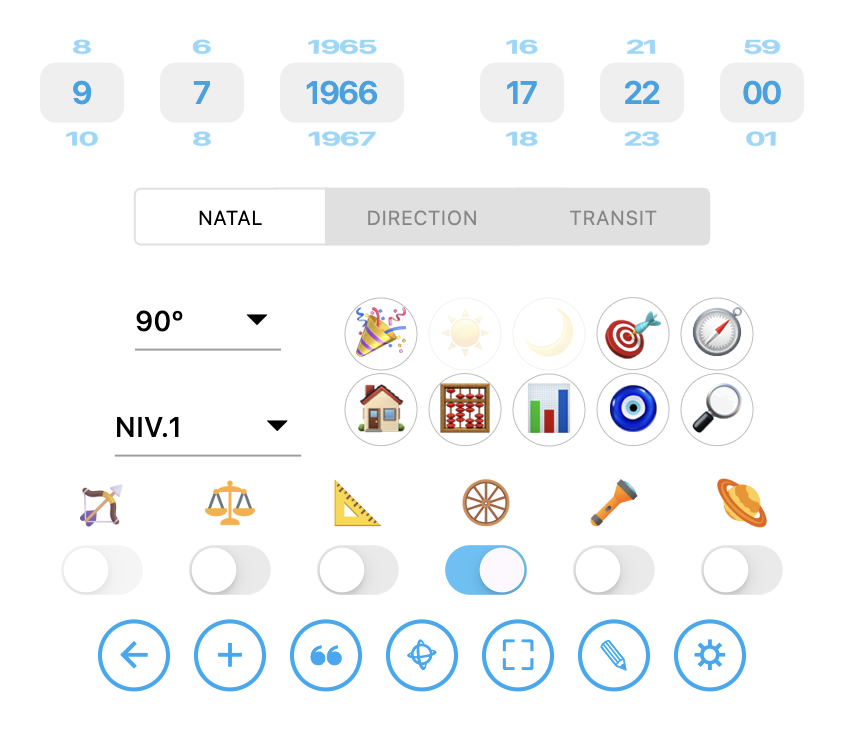
+Also, you will notice that the 🍢 button for opening the planetary figures listing no longer exists. There is now only a single button left, the abacus one: 🧮
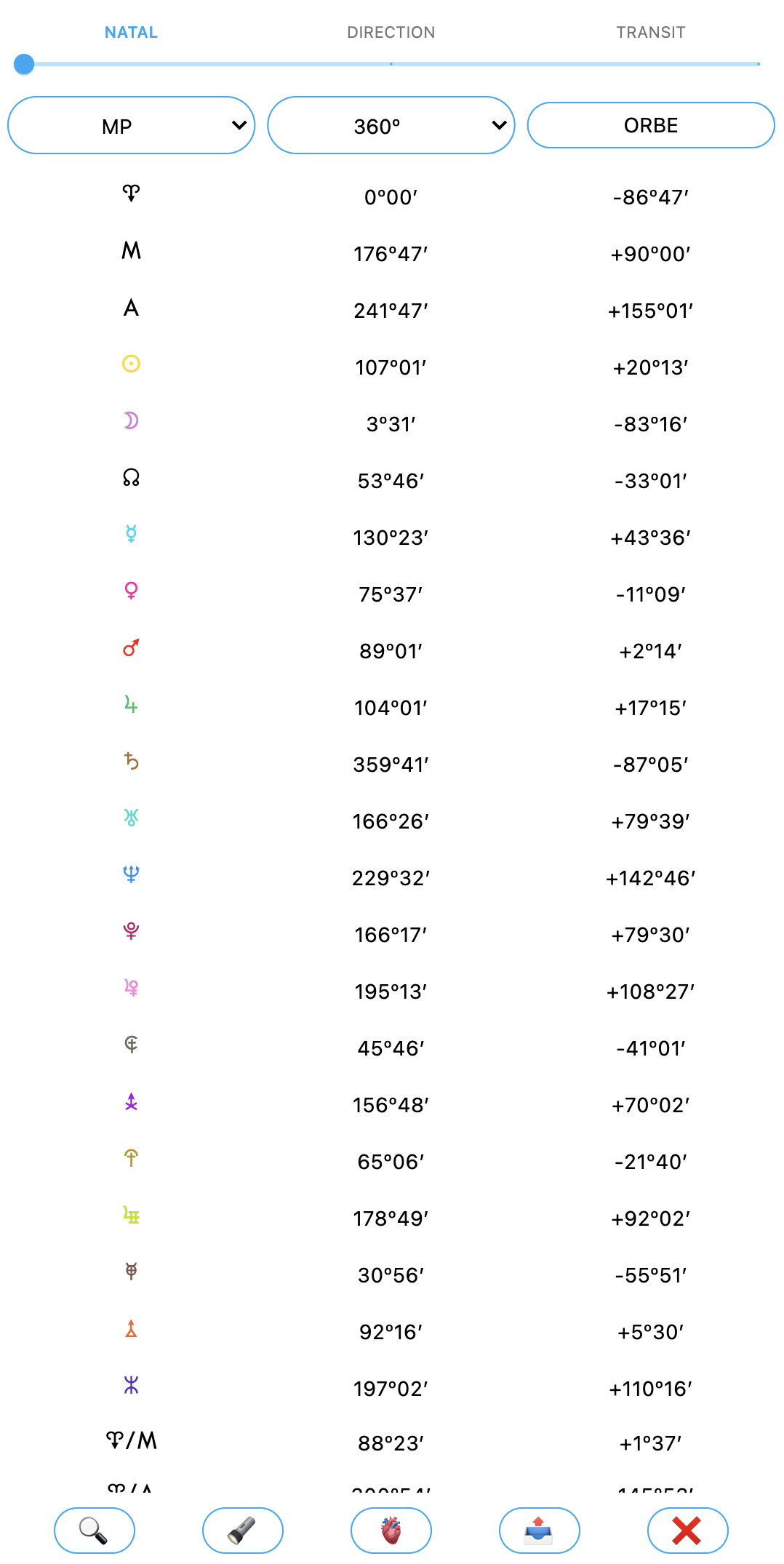
Simply because by going there, you now have the option to choose whether to display the midpoints:
Or the sensitive points:
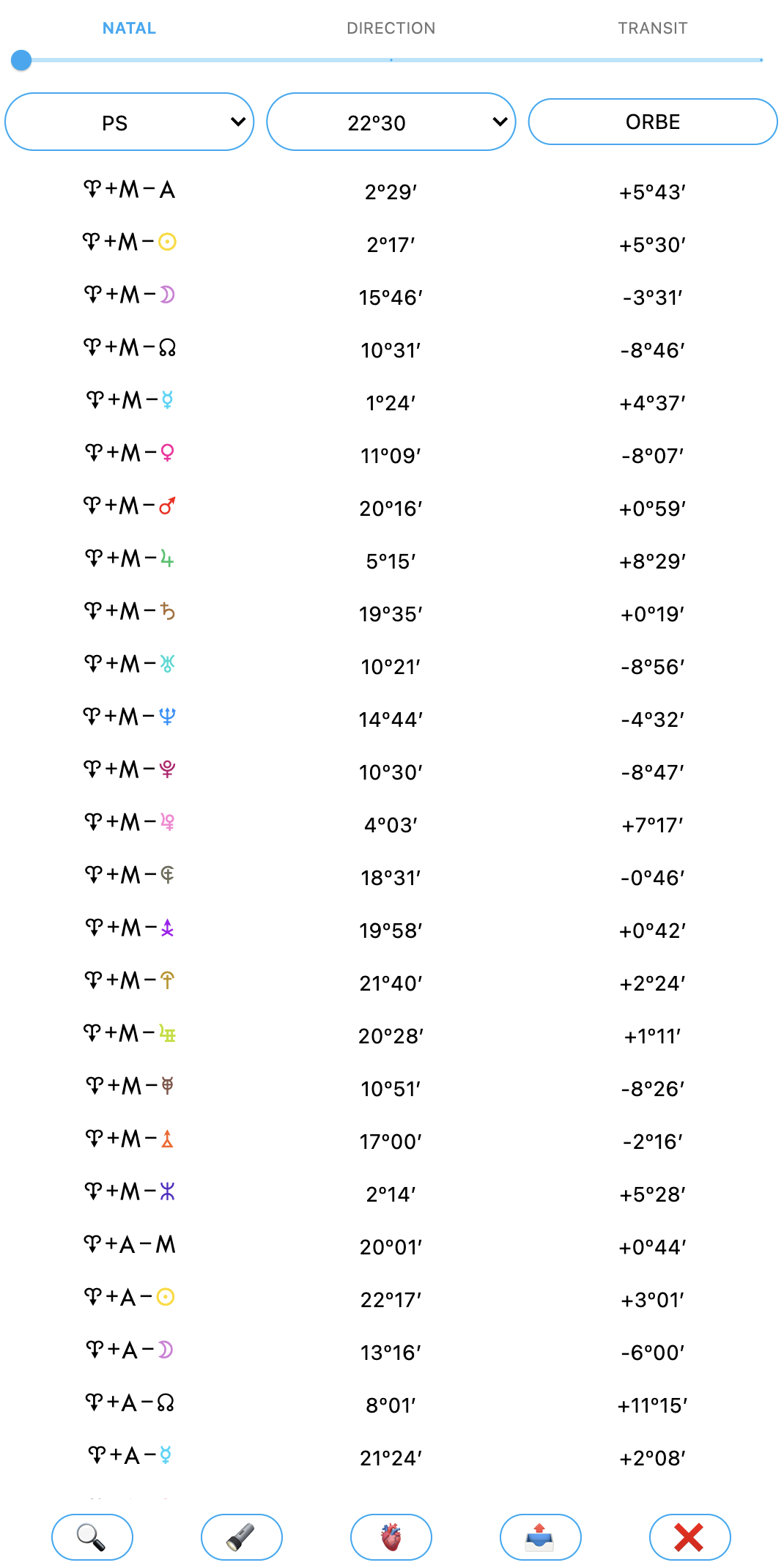
With, in addition, a slider at the very top to switch from one level to another. I just hope this will not slow down older computers too much… To be tested!
Then, if the 🍢 button is gone, another one has taken its place. The 🧿 button, which, besides being one of my favorite apotropaic symbols, now leads to 3 features that some people (rare people, let’s be honest) had been waiting for. First of all, the Astroportrait® 🖼️:
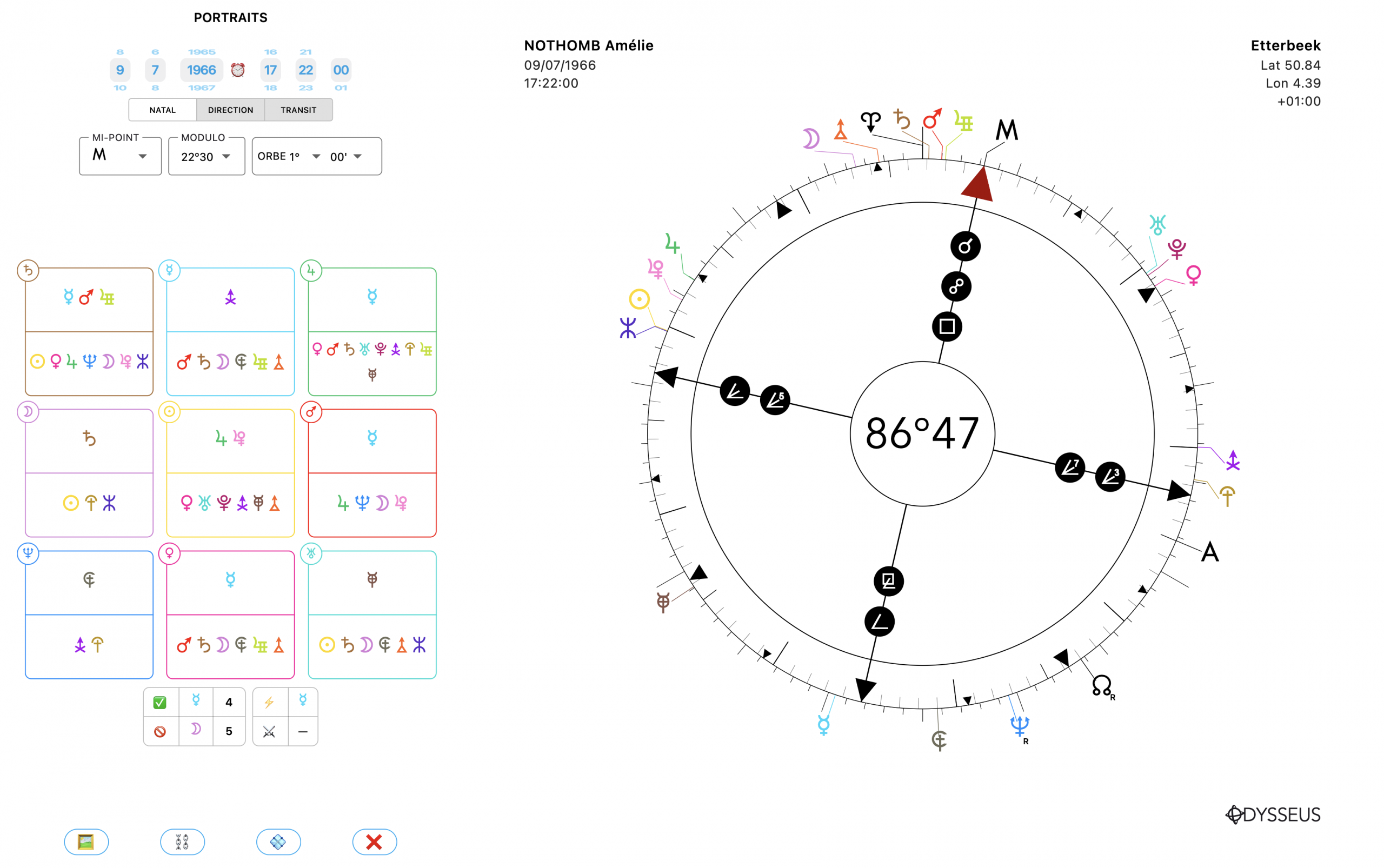
A creation of my own, it had until now only existed in the Olympia Astrologie software, kindly coded by my friend Mathieu Conrad. It can now be found in Odysseus®. The calculation method has been refined to make it more precise (so you will no doubt notice differences compared with what you found on Olympia if you compare them).
From now on, when you click on the boxes, you get that box’s definition:
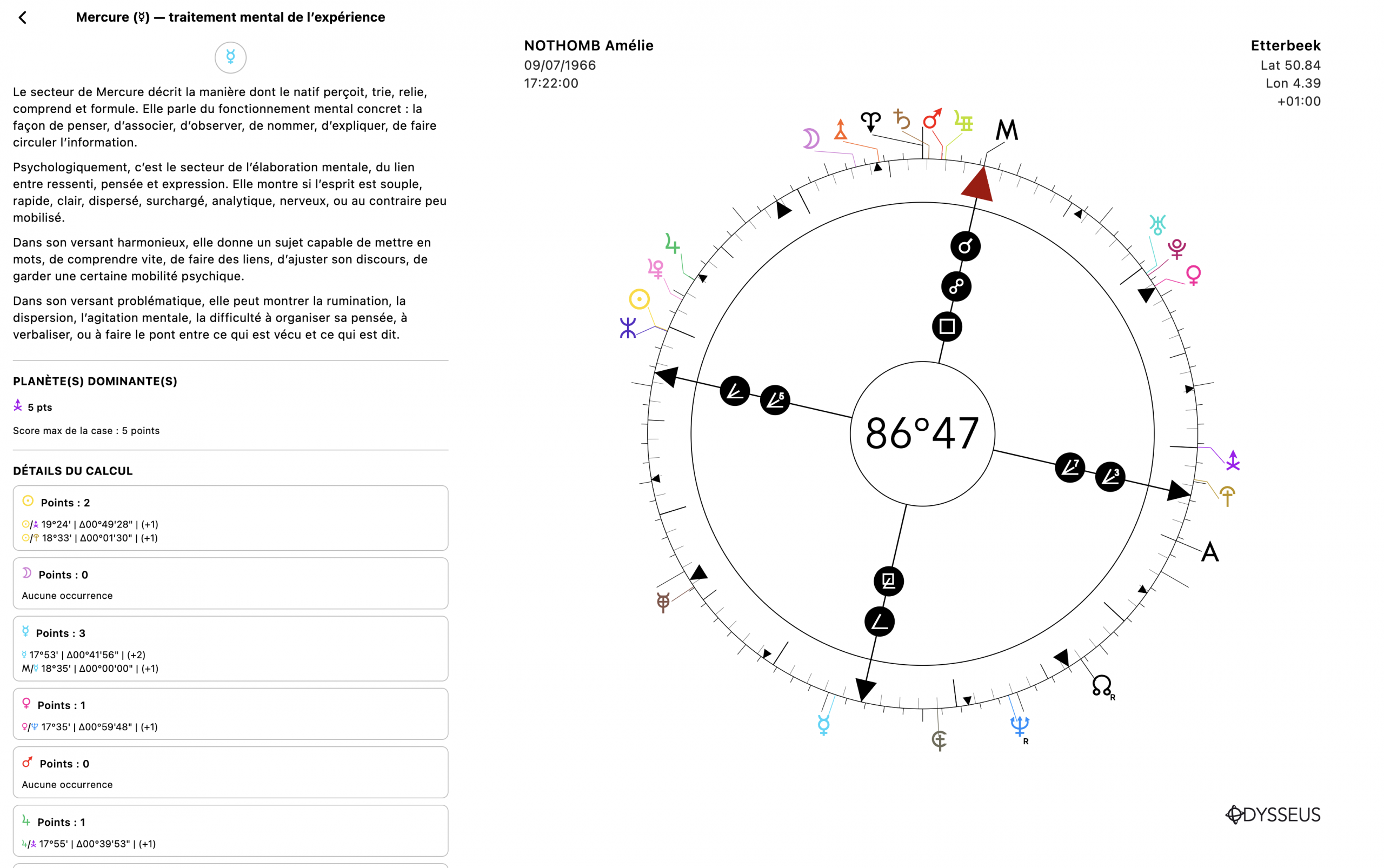
And you also have the possibility of performing the calculation not only with the Midheaven <, but also with the Ascendant >, or with no factor other than the target planet itself. Also, a summary table at the bottom of the page indicates the most present planets, the least present ones, the most energized ones, and the most torpedoed ones.
+ Then, as a second feature, you will find the Planetary Sequences ⛓️, a tool developed by Ruth Brummund which can, like the Astroportrait®, contribute to birth time rectification.
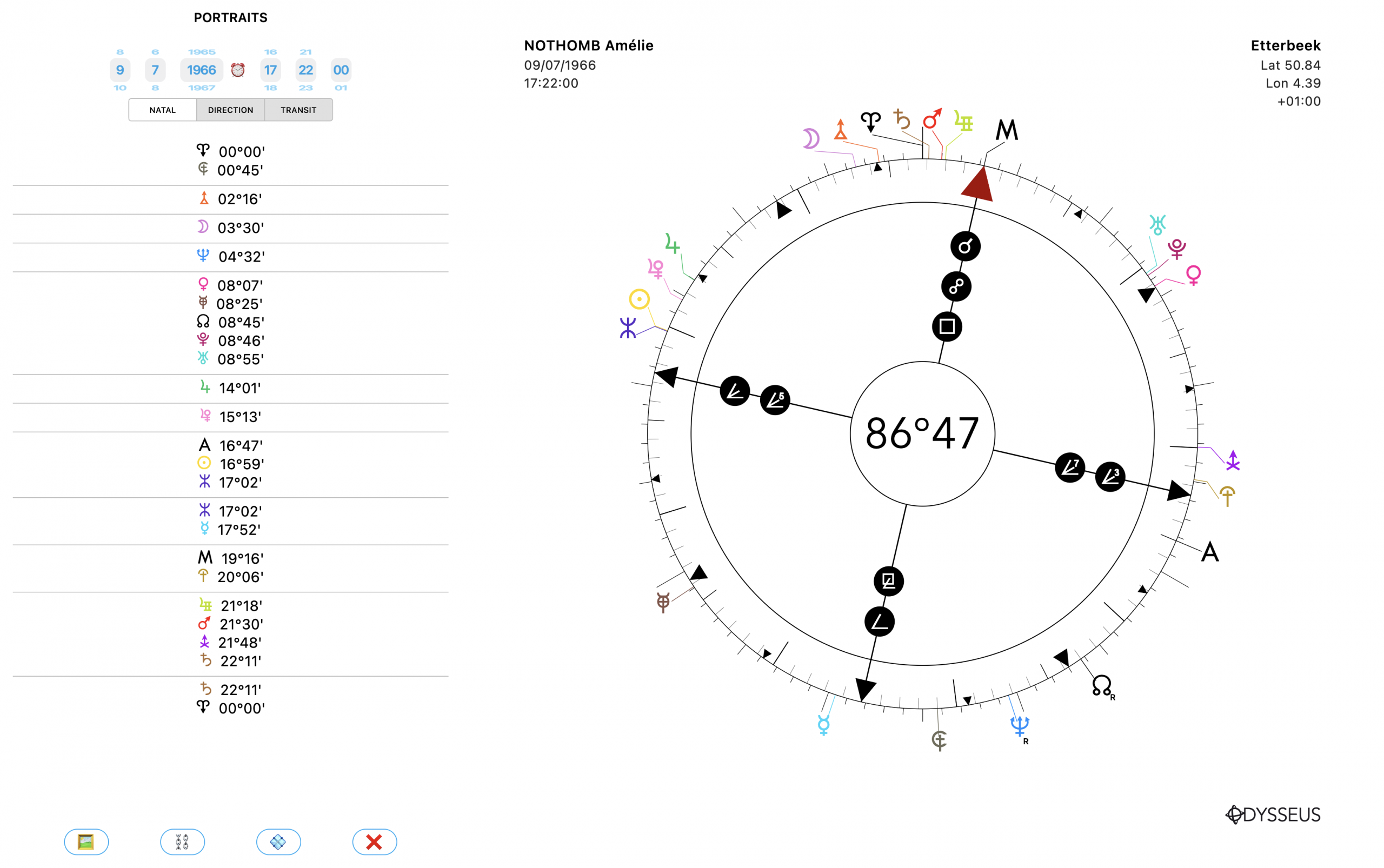
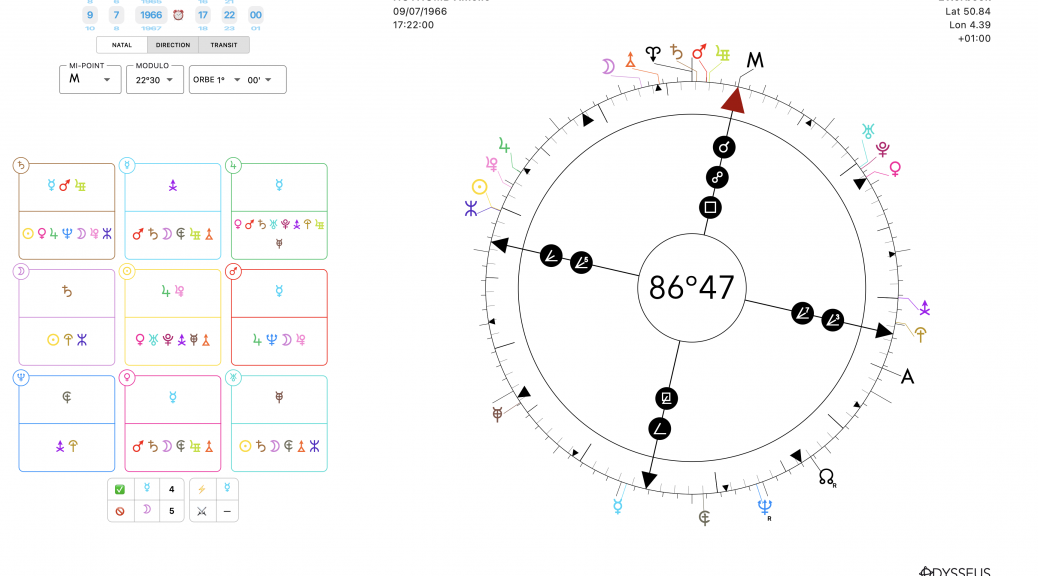
+ And finally, the “Meditation Wheel” or “Uranian Mandala,” another creation by Ruth Brummund, which naturally offers the axes taught by Brummund (namely, Sun N, Mars Q and the midpoint Mercury O/R Jupiter). But I programmed the software in such a way that it automatically offers the “substitutions” in the event of calculation conflicts (those who practice it know what I am talking about). Thus, Mars Q becomes Zeus c, then Vulcanus g, and the midpoint Mercury O/R Jupiter becomes Mercury O, then Jupiter R, then Jupiter R/h Poseidon, then Mercury O/h Poseidon, and finally the Moon Y as a last resort. For these substitutions, I relied on Brummund’s writings on the one hand (books, articles, and website), as well as on the work of Ruis and Descamps. But it should be known that no definitive statement on substitutions can be found. Brummund had begun working on this wheel without initially proposing any substitution. Then she mentions the fact of substituting planets that overlap (except for the Sun N, which must never be substituted). Then elsewhere she mentions some possible substitutions, and other substitutions in yet another place. As for Ruis and Descamps, they are roughly consistent with what one can read in Brummund, but again with a few small differences. So rather than choosing, I put everything into the software, and you will be able to choose the axes yourselves.
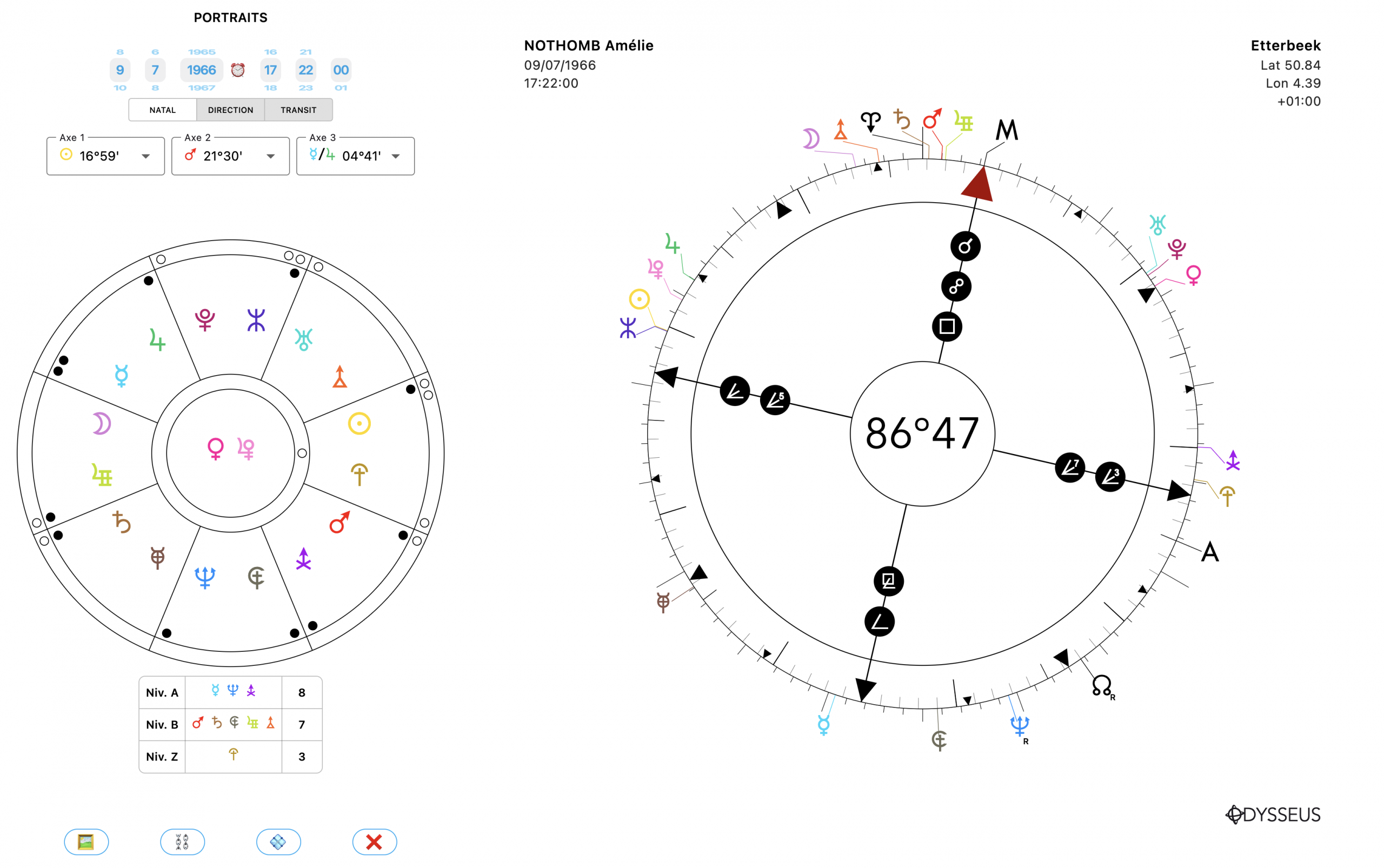
+ Another new feature that I had been waiting to figure out how to implement in the software: the midpoint tree. A difficult feature, because everyone uses their own orbs and their own harmonics. So I could not bring myself to arbitrarily decide in favor of a reading at 22º30 with a 1º orb. I had to leave users the possibility of choosing. So, when you right-click on a planet, the TREE option now appears first:
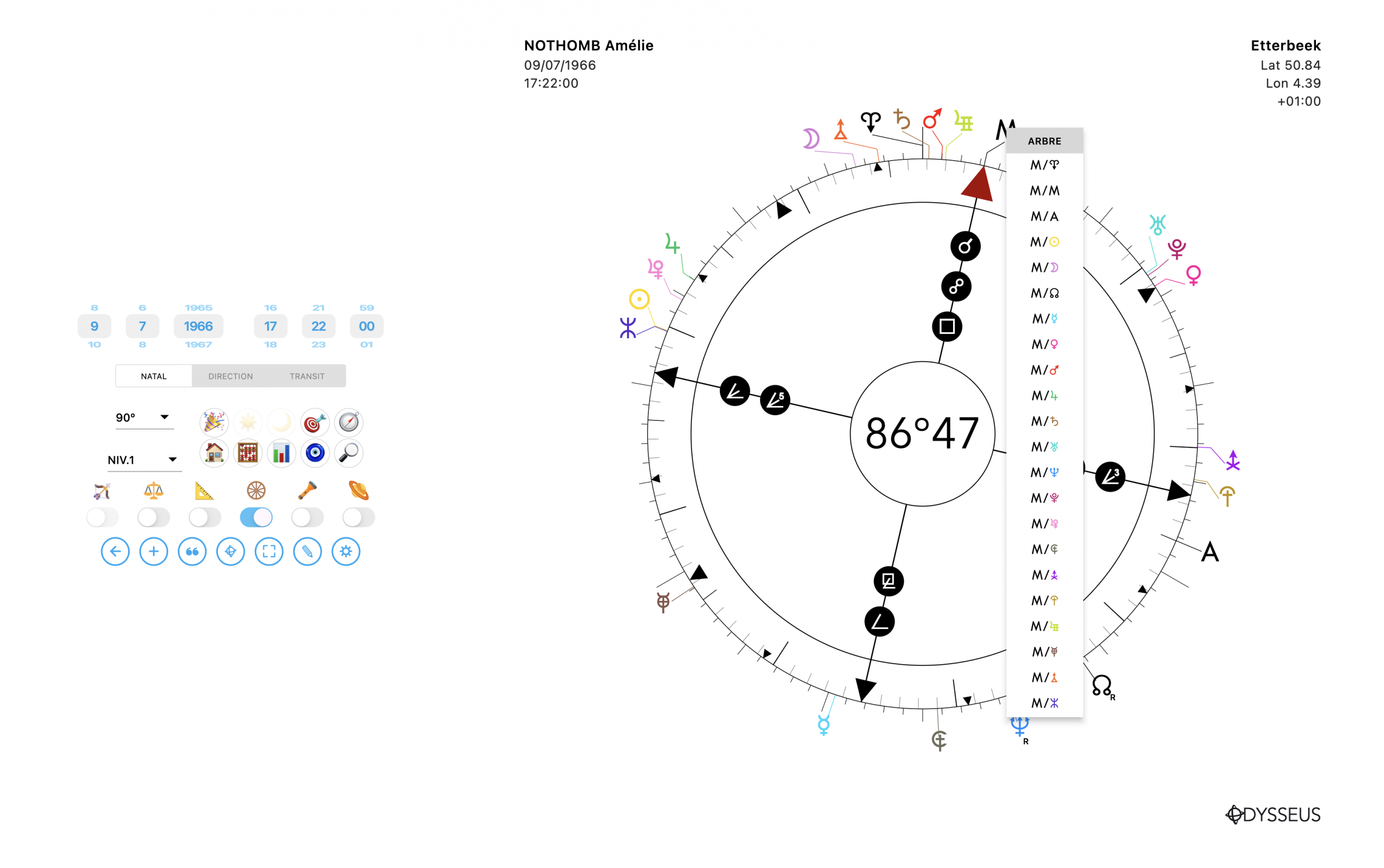
The new window offers to display the midpoints…
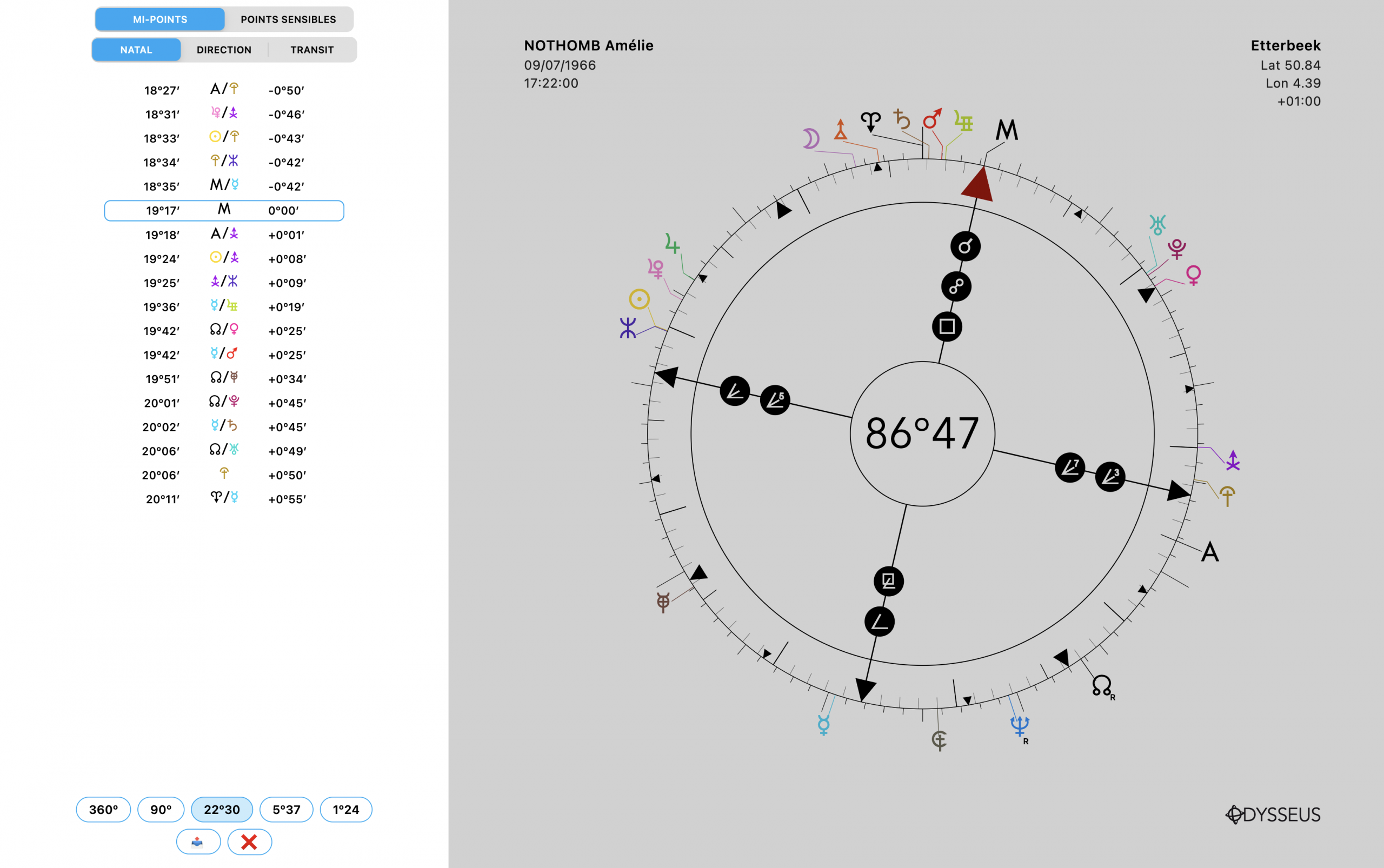
…or the sensitive points, and each time across the 3 levels, with in addition the choice of which harmonic to use via the buttons at the bottom of the window, as well as the possibility of exporting the listing as a PDF using the export button 📤
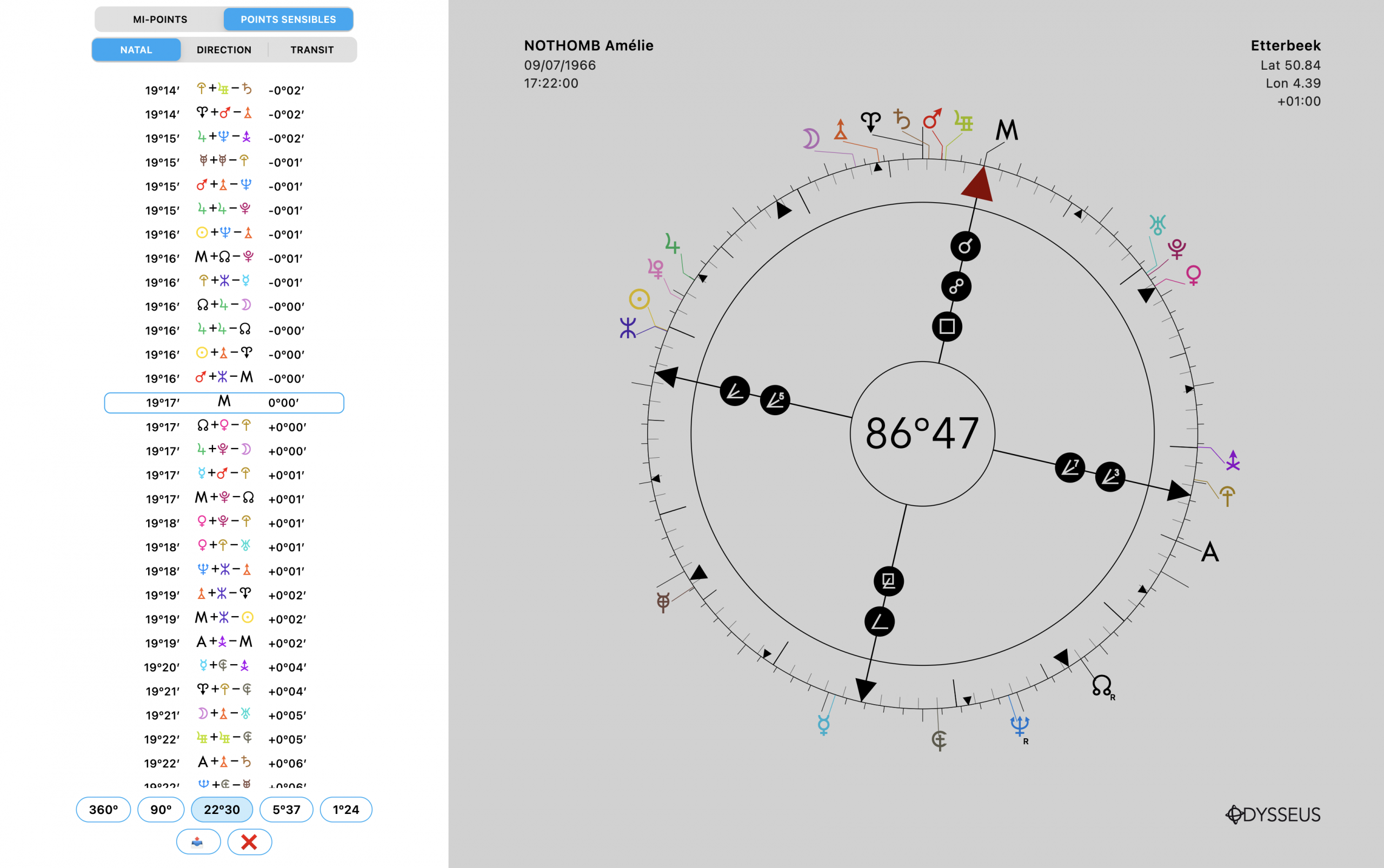
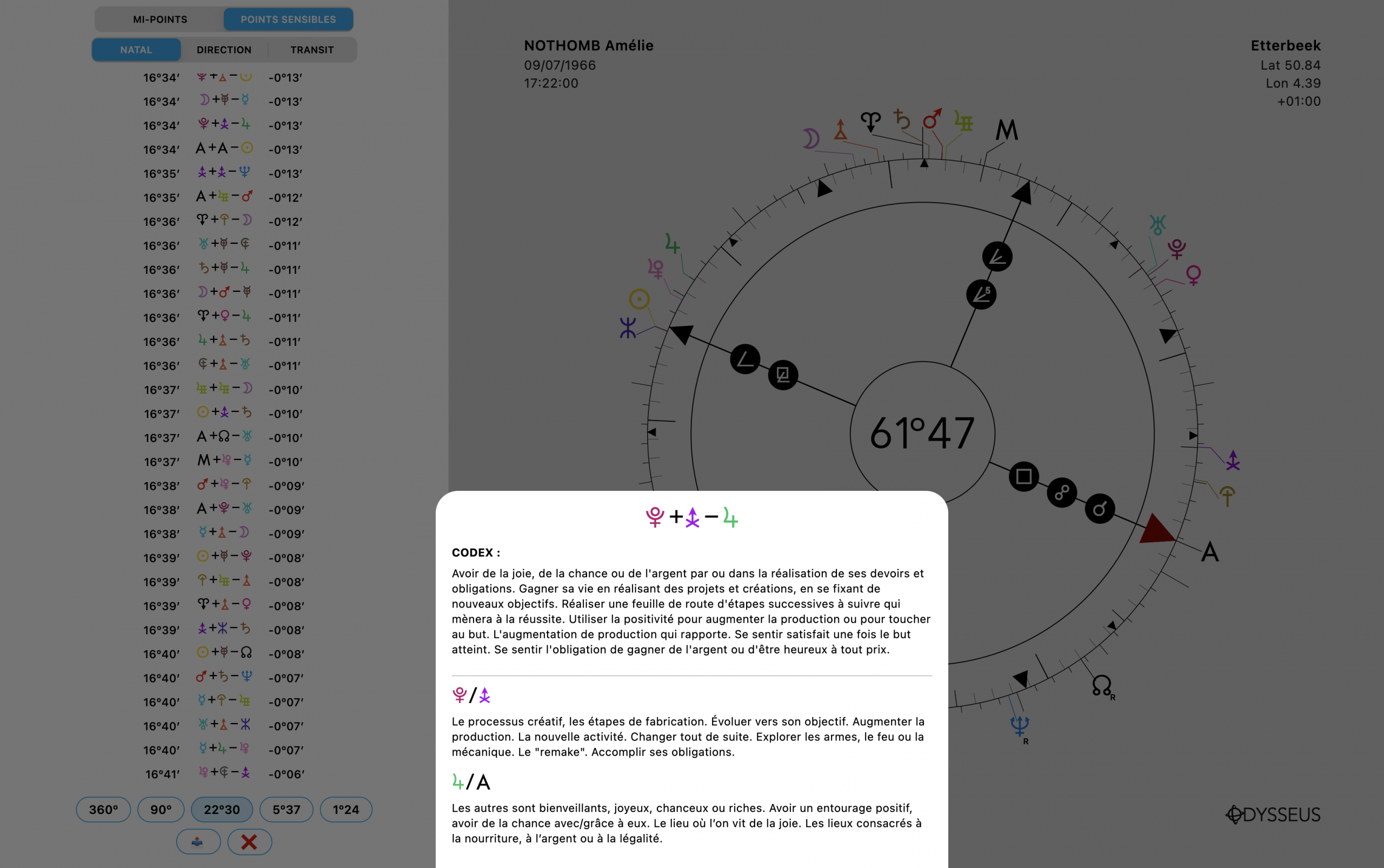
Moreover, if you long-press on a line, you get the literal definition, then the composite definition. In other words, the definition of the midpoint alone or the sensitive point alone, then the definition of the planetary figure formed (A/B=C) or of the two midpoints formed (A+B-C=D -> A/B=C/D):
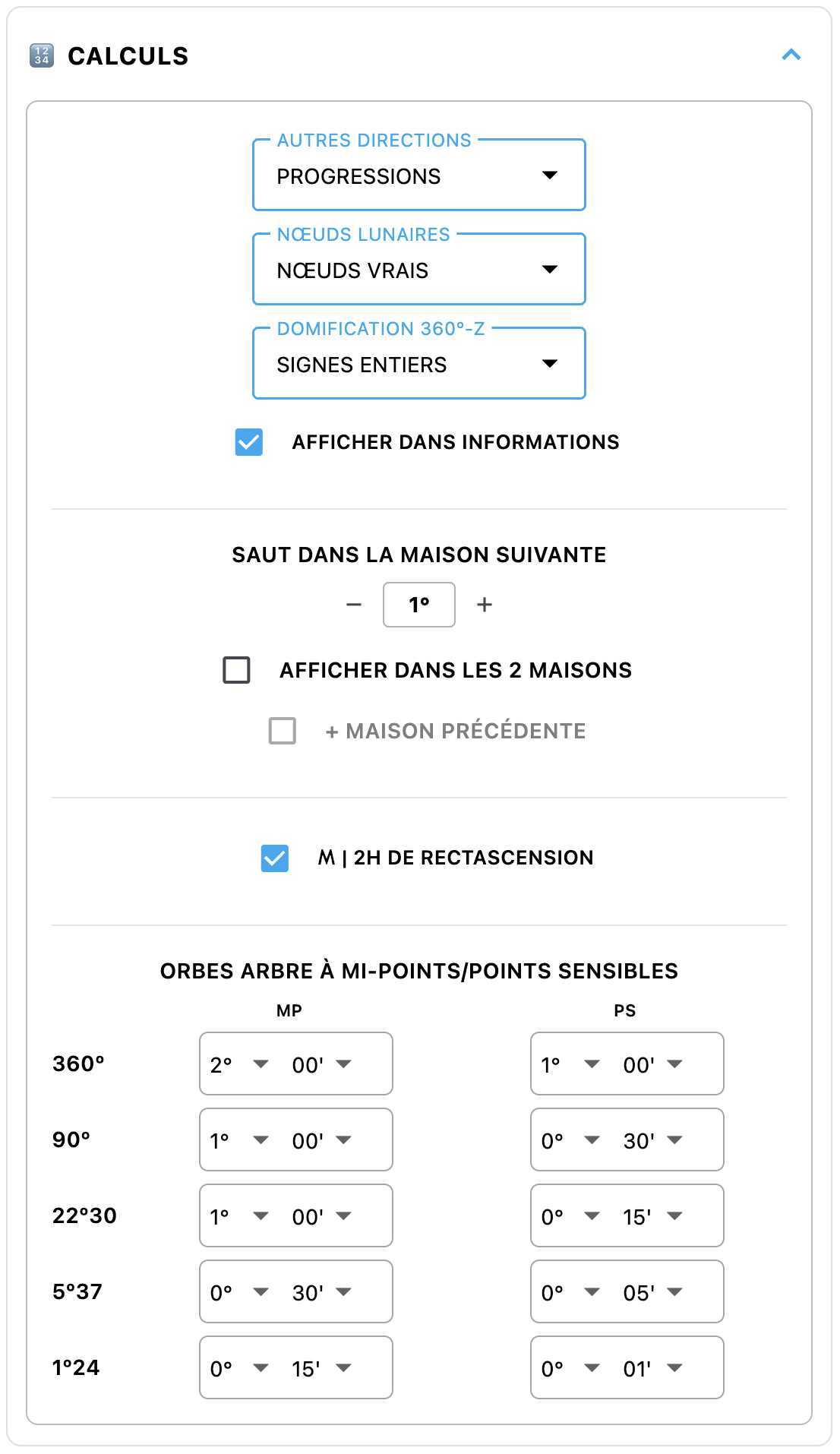
It is possible to adjust the orbs directly in the configuration panel ⛭, in the CALCULATIONS block:
But also, for those who use Odysseus® on devices without a mouse and therefore cannot right-click, you can still long-press on a planet to display the mp/ps panel:
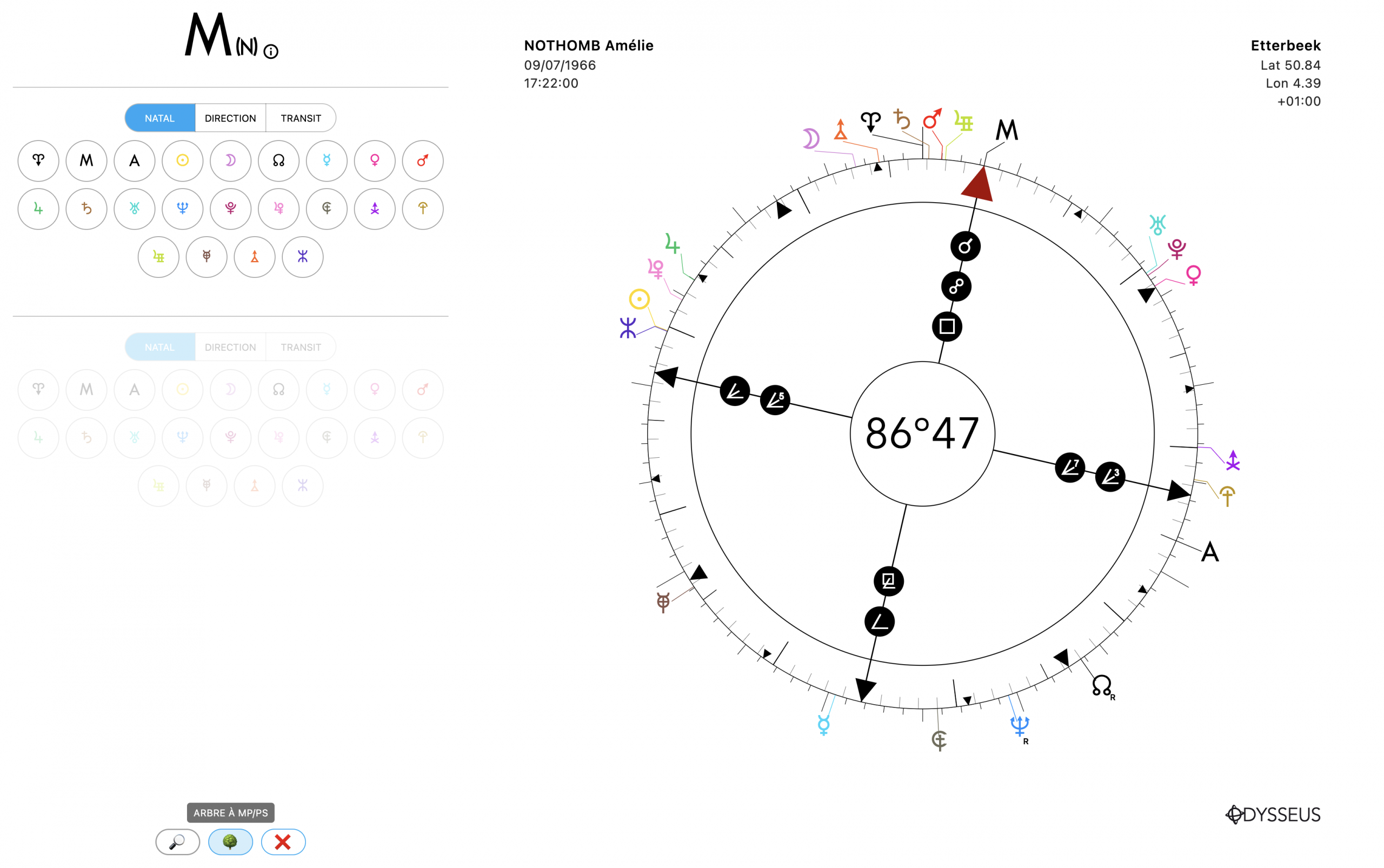
Then click at the bottom on the 🌳 button to go to the tree.
+ Another new feature that was requested of me: the possibility, from the configuration panel ⛭, at the very bottom of the page, of using the 📤 MASS SAVE and MASS LOAD 📥 buttons.

The first button is used to export, in a .zip file, all birth charts, all palettes, and all the contents of your custom grimoires so that, with the second button, you can download that zip file in question and reimport everything. So, if you need to change computers, you will be able to save everything at once (a feature still a bit in beta testing, I admit… so be careful, but test it and let me know).
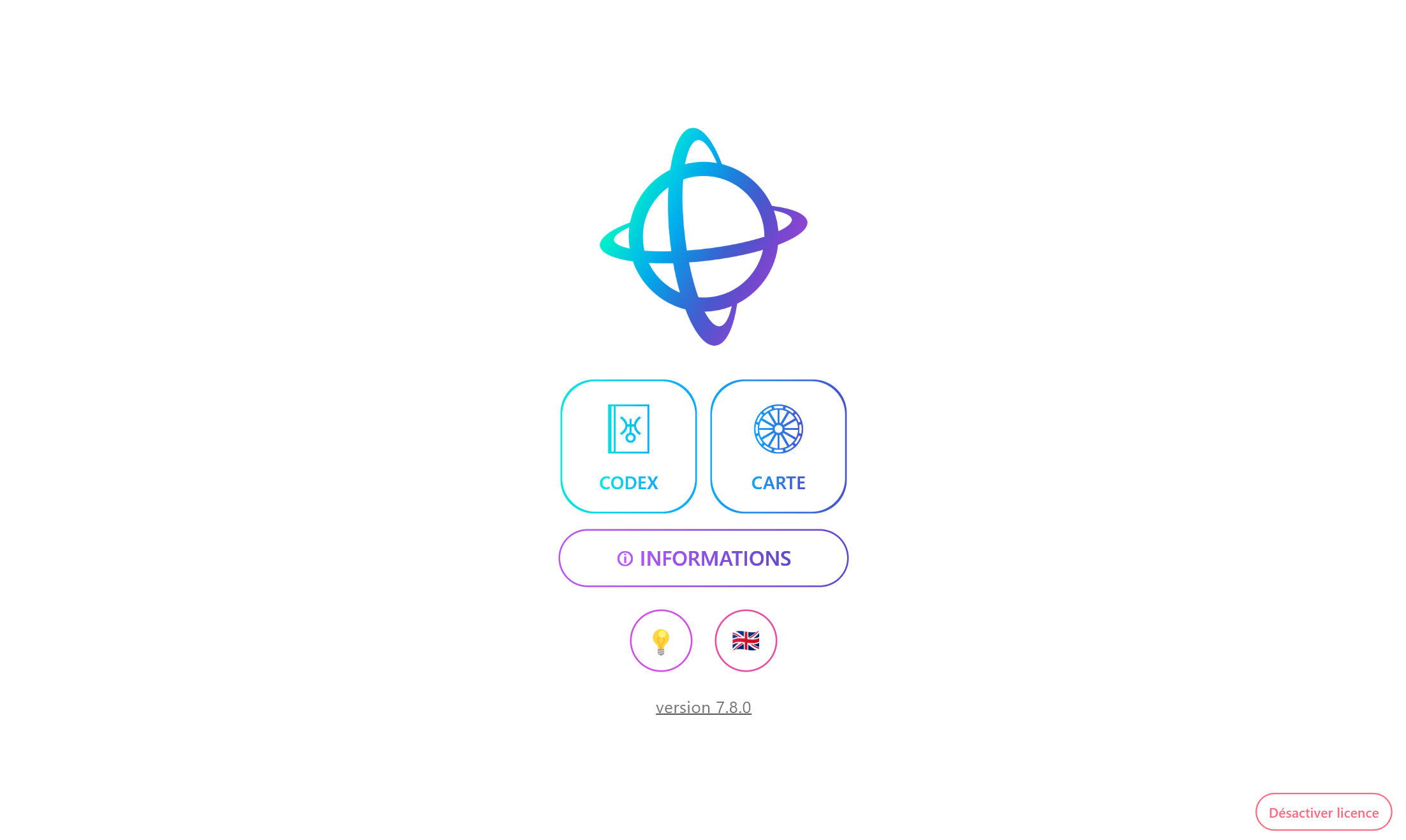
+ And finally, exclusive to Windows users: the possibility, from the home page, of deactivating the license thanks to a red button at the bottom right:
WARNING! When you click on it, you get a warning message:
– first of all, make sure you save everything BEFORE deactivating your license
– next, be sure that you really need to deactivate your license, for example if you are changing computers and wish to transfer it to another computer
– finally, once you click continue…
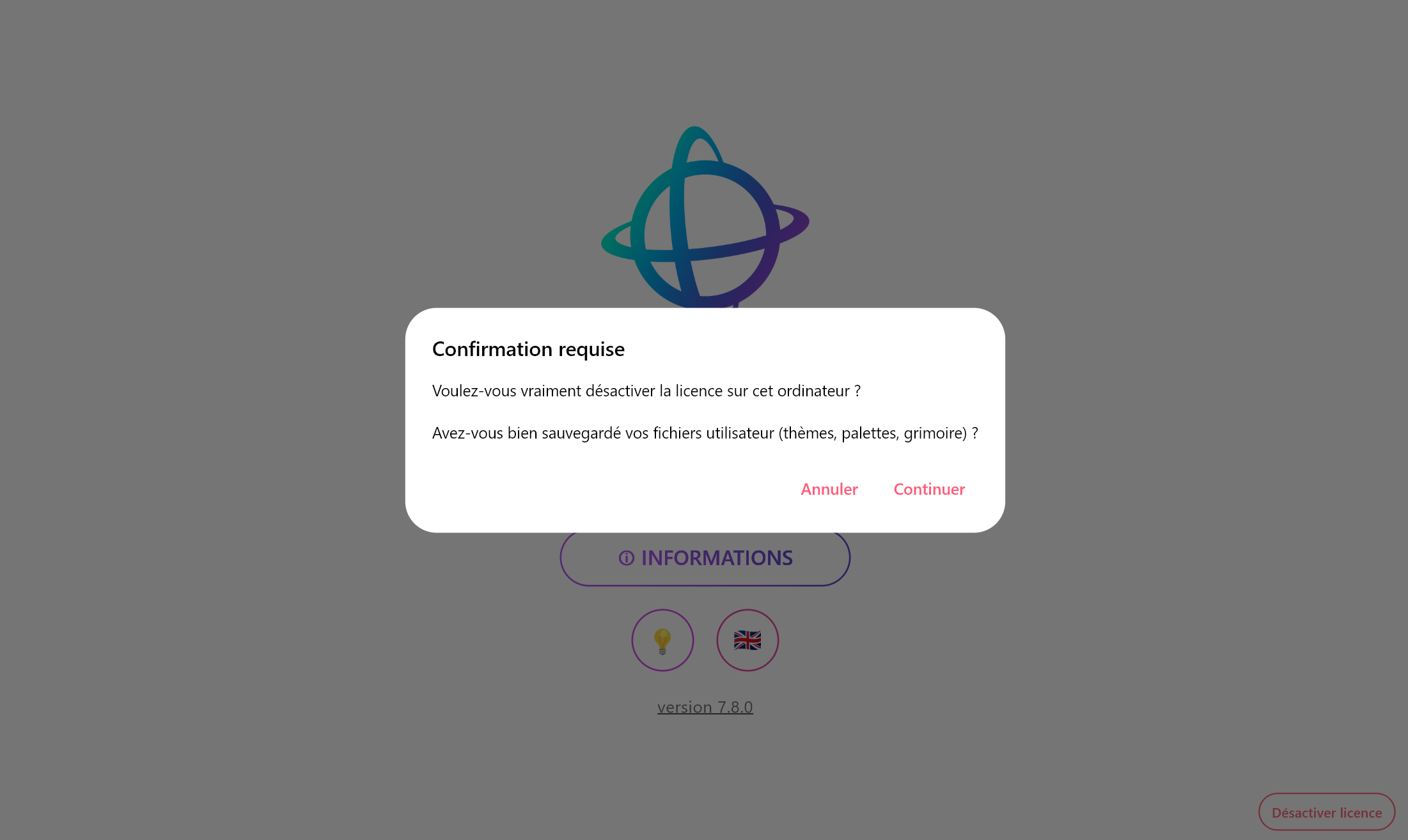
…a code will be sent to you. WRITE THIS CODE DOWN CAREFULLY! And when I say “write it down,” I do not just mean “do a CTRL+C and we’ll see later,” because if you lose this code, there will be nothing I can do for you and your license will be lost. You will then have to buy a new one (no exceptions). I NEED this code to prove that you have indeed uninstalled your license. So write it down. Then, on your new computer, install and launch Odysseus®, click one of the buttons to open the activation window, and proceed as during your first installation: retrieve the software code, click the link to access the submission form, fill in your information and your new software code AS WELL AS the deactivation code of the previous license. On my side, I can verify your deactivation code from the previous license, and provide you with a new activation code for your new computer. This code is therefore essential for linking your two licenses.
That’s about it for now.
Enjoy your practice 🙂